
Getting Started with Learn
Automatic translation. View original
Start by publishing in-person, online, or recorded classes so your students can find the content once they register on the platform
To start setting up your posts, log in to Learn as an instructor by logging in through Padma.
Publish your activities
In-person, live, and hybrid classes in your weekly schedule.
They can be single broadcasts or carried out.
recurringly 👉 To createin-person classes , we recommend you first enterin the instructor's advanced panel: , the addresses of the locations.
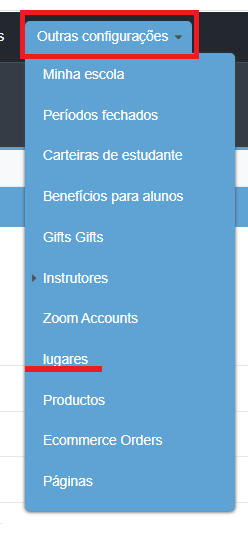
whether it's your school, a park, or another placeThen, on the “Posts.
” tab, you will see the different options to open the specific creation form for your in-person class.
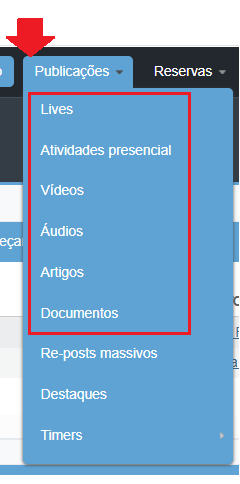
These classes can be hybrid with just one click 👉 LIVES are.
live online posts You can easily assign an instructor to them Class substitutions
via the. Instructor App 👉 AUDIOS.
In the case of podcasts, it is possible to include Spotify links, but for your own audio files, we recommend specific platforms where you can upload the file, such as:
SoundCloud Recommendations.
For recorded class videos We recommend Vimeo For live classes we recommend Zoom, see how.
Add Zoom account
to your Learn. Booking / reservation module.
This tool is exclusive to Learn PREMIUM.
Not available in the free version:
- You can set whether activities require booking and whether that booking needs to be confirmed or not
- Some of its multiple uses
- Allows you to know in advance how many people will participate in the activity
- Control access according to the plan
Limit the number of available spots in the activity Offer a waiting list with priority order to release new spots - Read more about this topic and its settings
Bookings
Reservations:
Visibility of posts.
You can choose with whom you want to share your posts: selecting grade, users from your school, from other specific schools, from the entire network, only those enrolled in a course, etc.
👉 Here you will find all the available options
Visibility of posts:
To expand the content you offer your students, you can share classes and posts from other schools Share content from other schools👉 You can share manually , curating the content that will appear to them, or share:
and in bulk How to share content from other schools 👉 You can enable the Explore, (from your school's settings or access presets,)
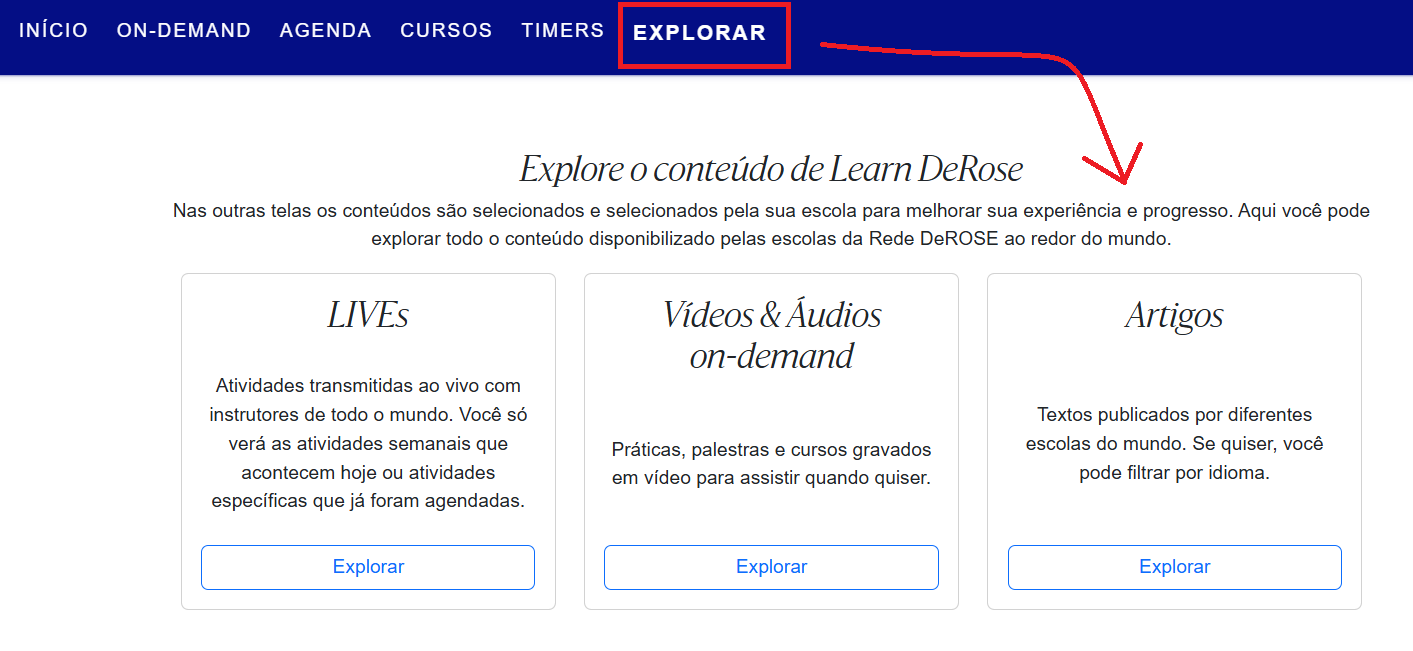
so your users can access content from all the DeROSE Network Schools
that use Learn.
User registration After having content on your platform, you can share the link for your users to registerIt is important that.
each user registers themselves-, as they need to provide personal data and create a password.
Without registration, students will not be able to navigate Learn, as it will not be possible to associate:
- them with a school, grade, or a specific subscription planThere are different ways to register students on Learn Through a “JOIN” link , which you find in the: https://learn.derose.app/a/SUAESCOLA/join
- Advanced Panelof your school: Through a subscription link
- , linked to the student's monthly payment or plan Charges via Learn Through a Learn DeROSE access coupon
free of cost for the student
Tracking student participation-Notification of check - ins and reservations made by your students
I received emails with this information-Check (ins)