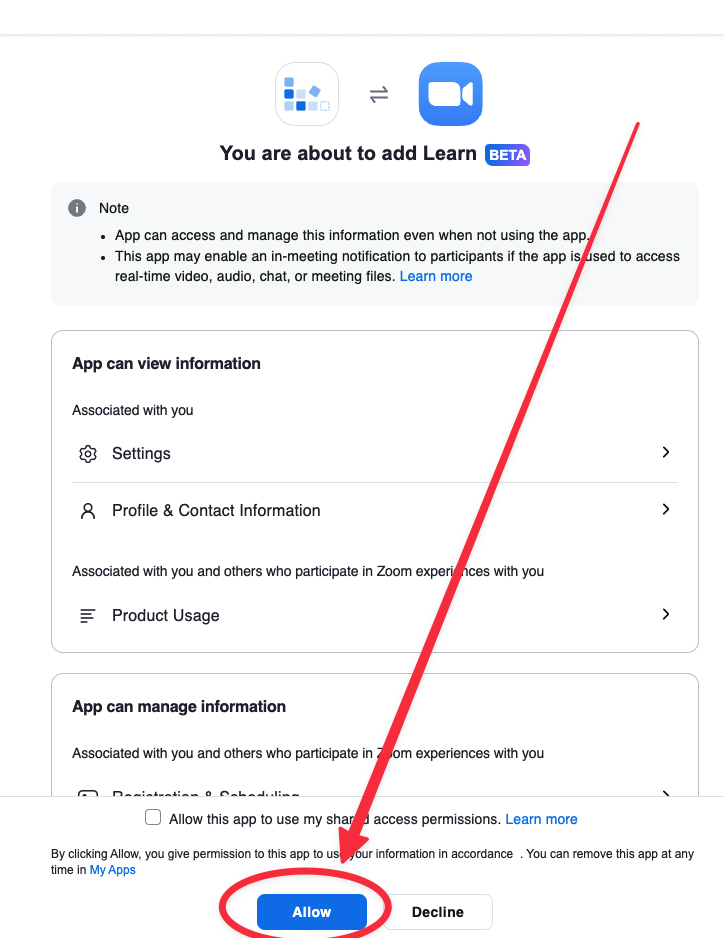
Add Zoom Account
Automatic translation. View original
This feature will make your life much easier but its setup takes a few steps. It will take you about 5 minutes to set up. If you need help or support contact me: Contact.
First part: Create app on Zoom
- Log in to https://marketplace.zoom.us/develop/create
- Click on Create
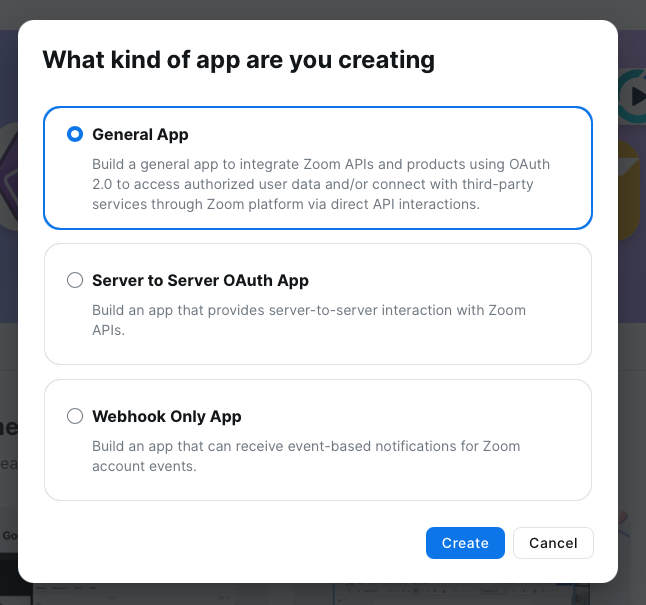
-
Enter "https://learn.derose.app” in the fields Redirect URL for OAuth and Add allow lists

-
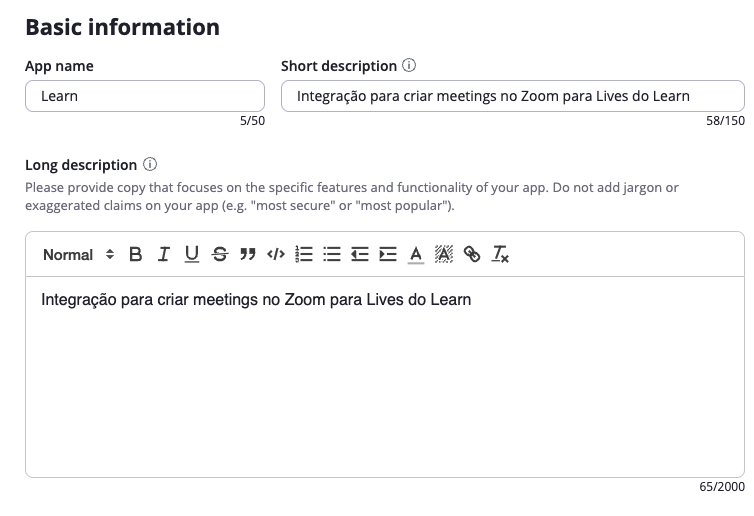
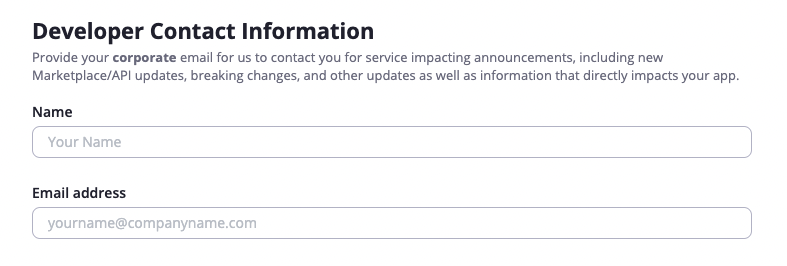
-
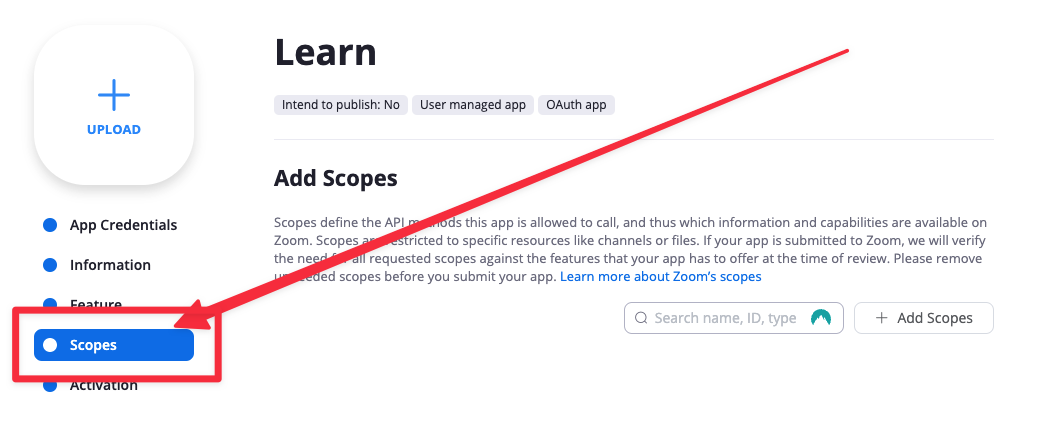
and add the Scopes “Meeting” > “Select All Meeting Permissions” and “User” > “Select All Meeting Permissions”
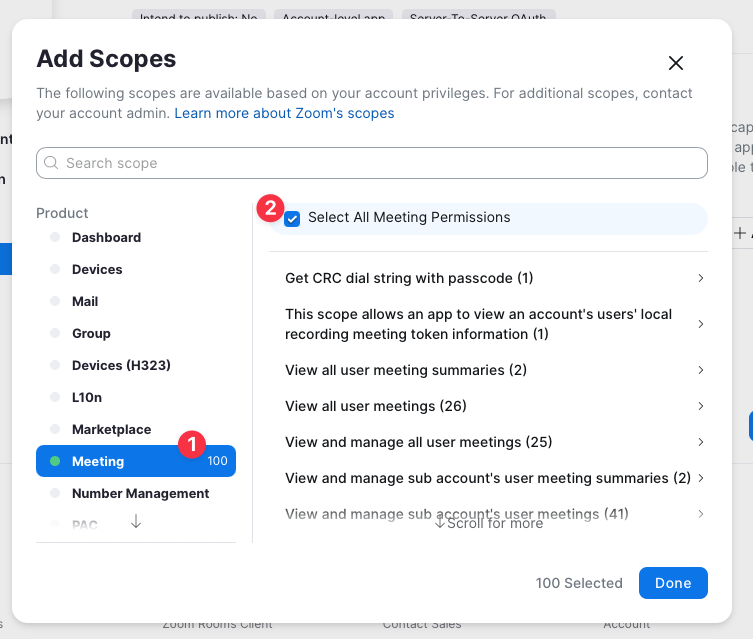
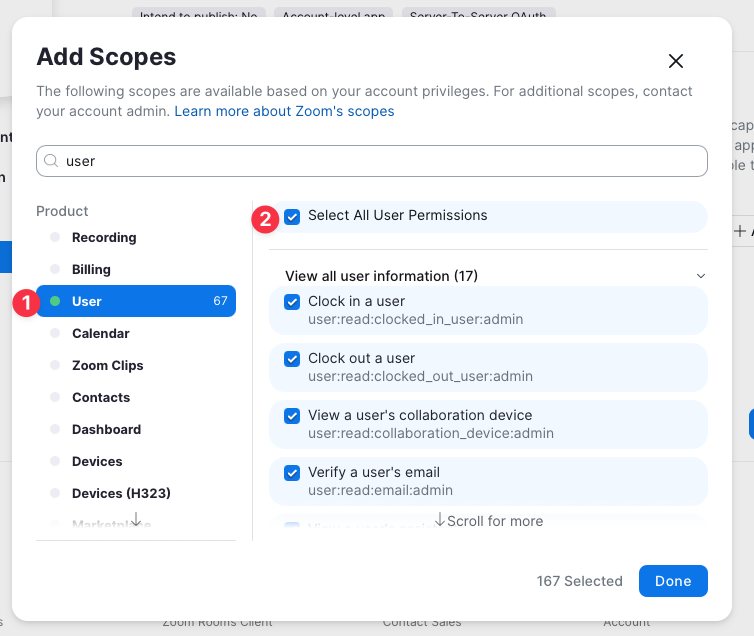
-
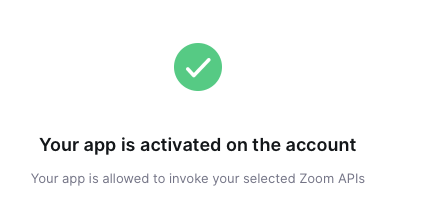
At the end you should have an “Add” button in the “Activation” tab
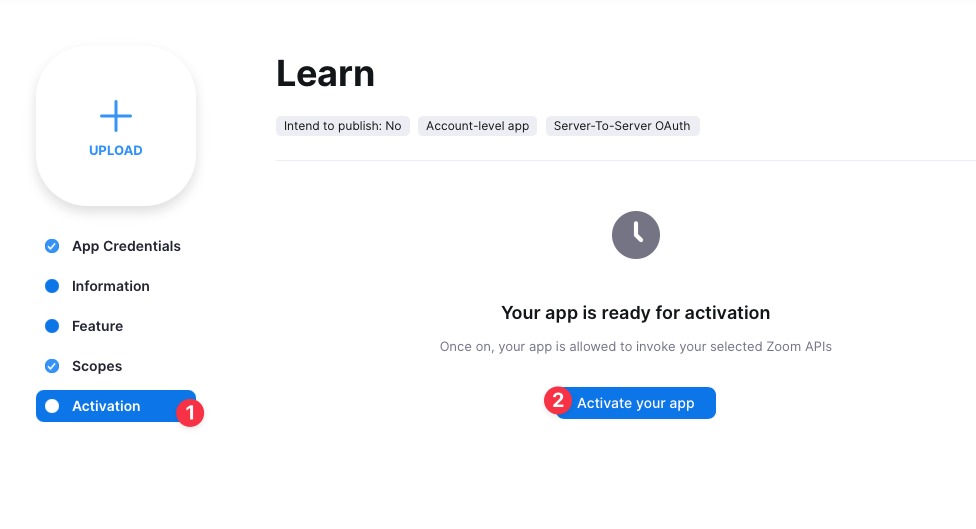
Second part: Authorize access to Learn
-
Select “oauth2” in the Authentication Protocol and “My Own App” in Parent Account.
-
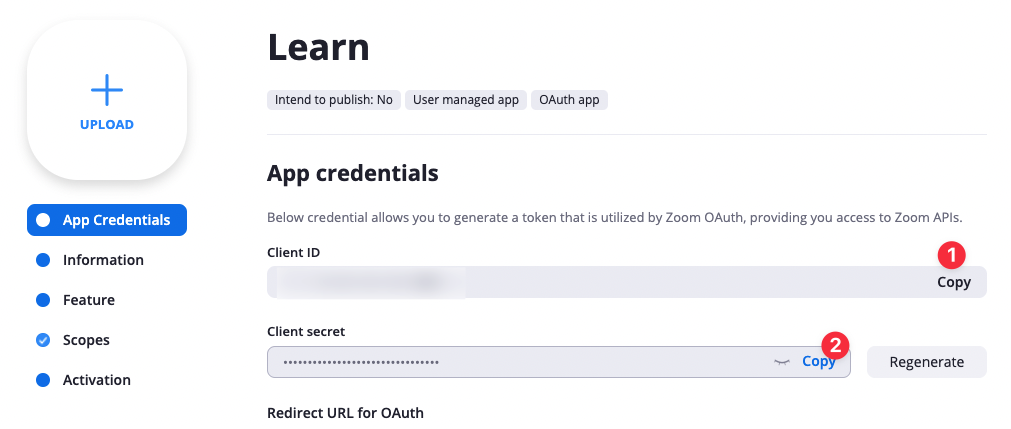
To fill in the Client and Client Secret fields Copy and paste from the app you created on Zoom. See in the image:
-
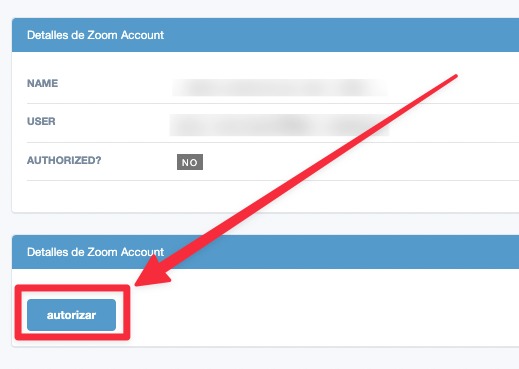
When saving click on ‘authorize’.
5. Click on “Allow”