We created a tool to import your Workplace posts as Learn Articles within a course.
# 0 - GET THE WORKPLACE FILE
The file you need to upload is '**your\_posts\_in\_groups.json**' found in the 'groups' folder of your Workplace download.
[Tutorial video](https://youtu.be/qPLw66_8cmA)
To convert the Zip into a folder: [https://support.apple.com/guide/mac-help/zip-and-unzip-files-and-folders-on-mac-mchlp2528/mac](https://support.apple.com/guide/mac-help/zip-and-unzip-files-and-folders-on-mac-mchlp2528/mac)
# 1 - CREATE THE COURSE
First, create the course with the desired visibility.
# 2 - Import setup
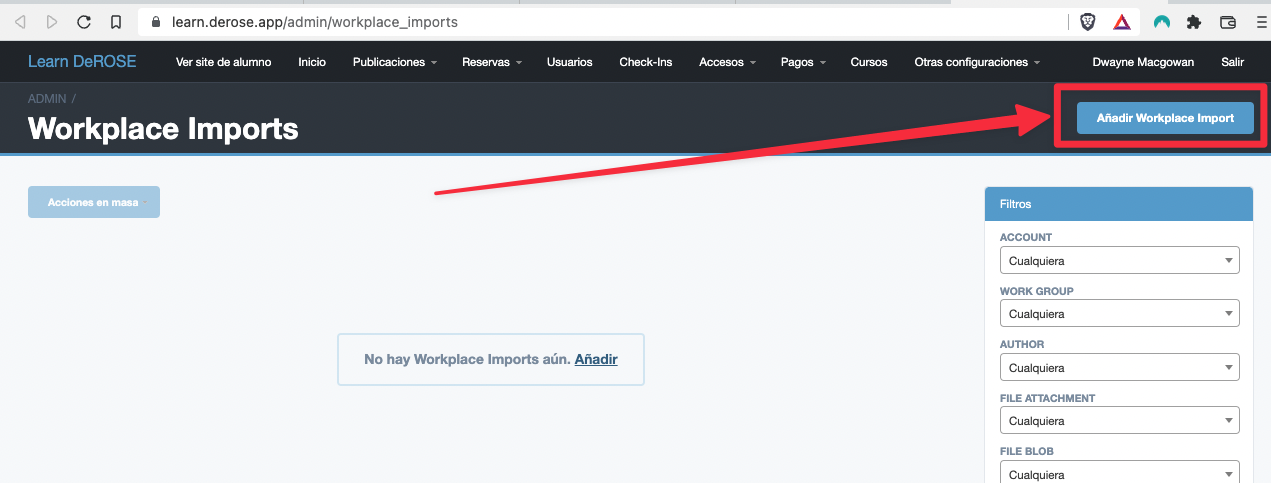
Enter this link: [https://learn.derose.app/admin/workplace\_imports](https://learn.derose.app/admin/workplace_imports)
Click the button to add an import and fill out the form
# 3 - Check
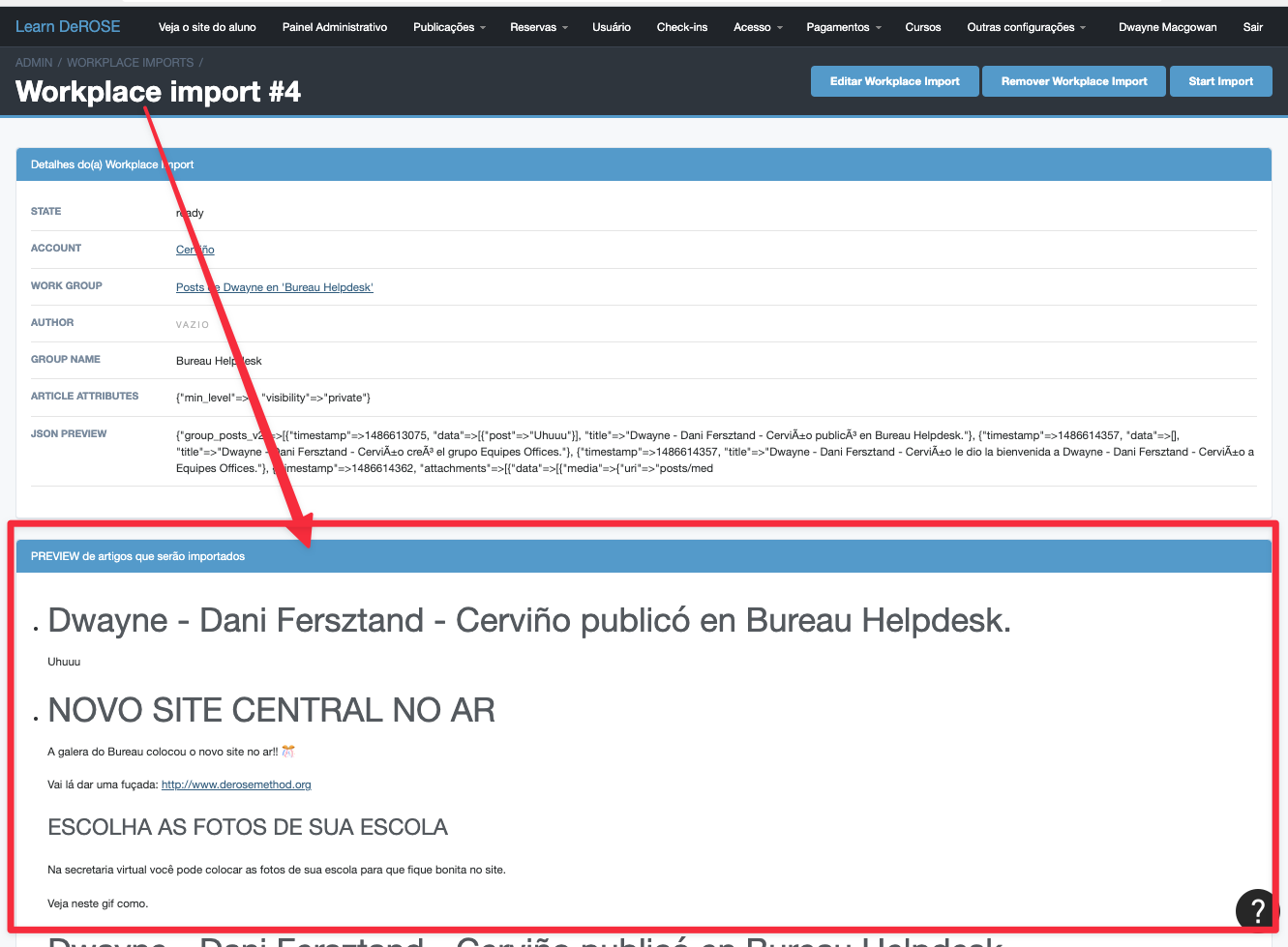
When saving, you should see a preview of the articles that will be created. If it is empty, try correcting the Group Name field; it must match exactly as it was in Workplace.
# 4 - Import
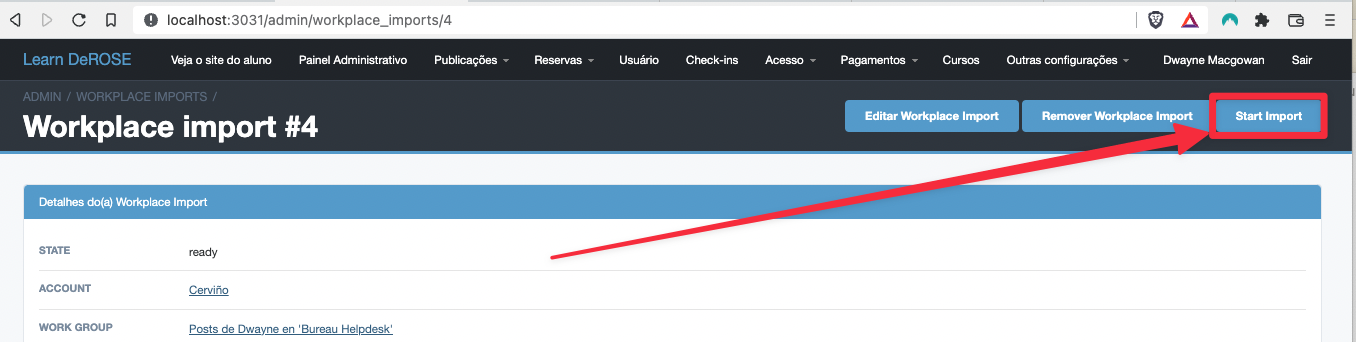
If everything is correct, click “Start import”
# Need to cancel?
After the process is completed, if you **DELETE** the ‘Workplace Import’, all imported articles will also be deleted.